
Free Color Calibration Tool for LED TVs, PC & Laptop Displays
Accurate color starts with proper display calibration. This free online color calibration tool helps you fine-tune brightness, contrast, black levels, and grayscale balance to achieve true, neutral color output on your monitor, laptop, TV, or mobile screen. No downloads. No installations. Just visual calibration based on professional display standards.
1. Grayscale Color Cast Calibration
Steps to Use the Grayscale Test
- View the screen in a dim or normally lit room
- Sit at your usual viewing distance
- Open your display’s color or RGB adjustment settings
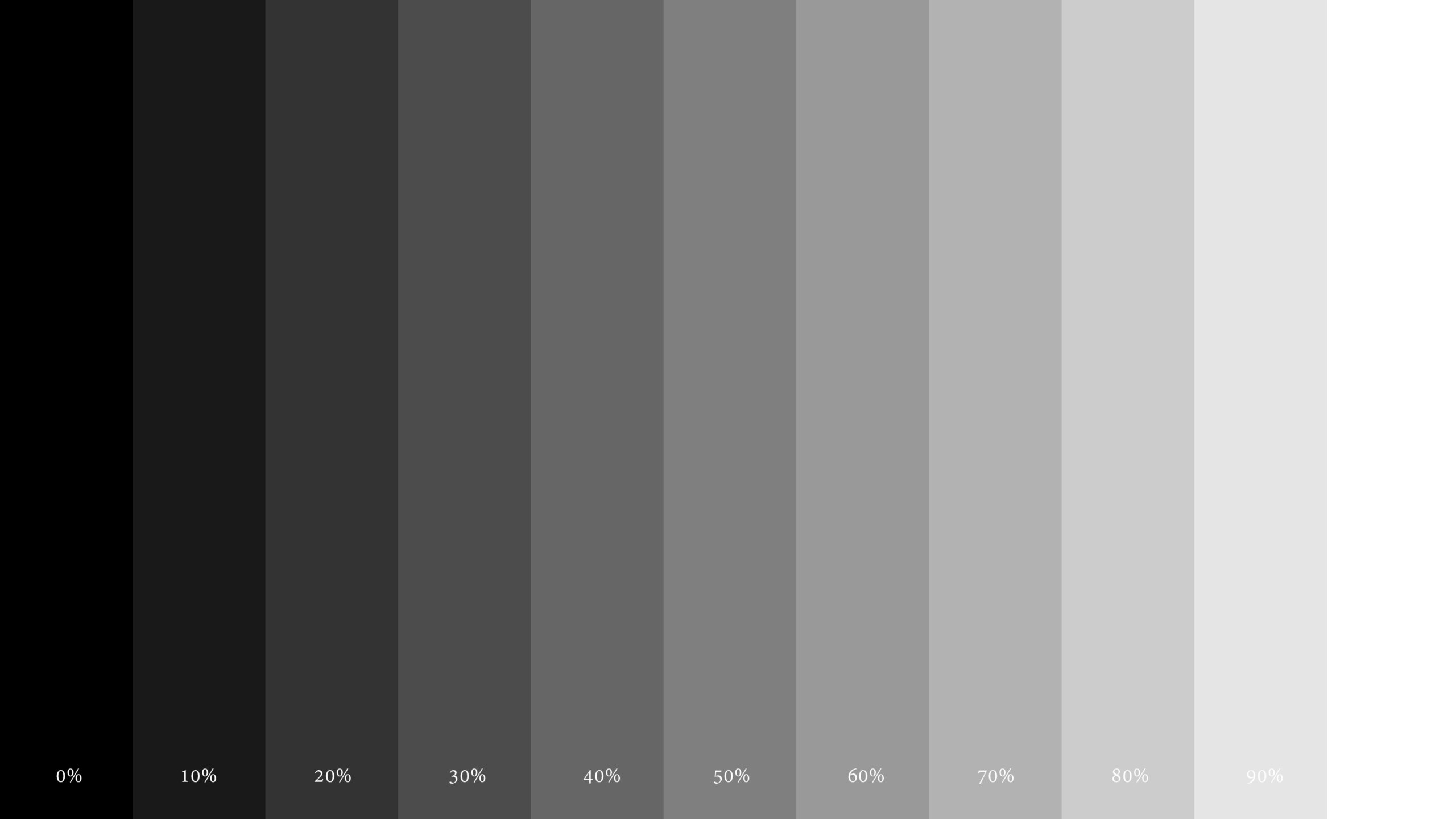
- Observe the gray bars carefully
- Adjust RGB levels or color temperature until:
– All gray bars appear neutral
– No bar looks warm (red/yellow) or cool (blue)
Goal: Every gray step should look purely gray, without any tint.
What This Test Does
This test displays neutral gray bars in 10% increments, ranging from pure black to pure white.
Each bar uses equal RGB values (R = G = B) to ensure true neutral gray with no color bias.
This allows you to visually detect and correct color casts caused by incorrect RGB balance or color temperature.
2. Black Level & Brightness Calibration Test
How to Use the Black Level Test
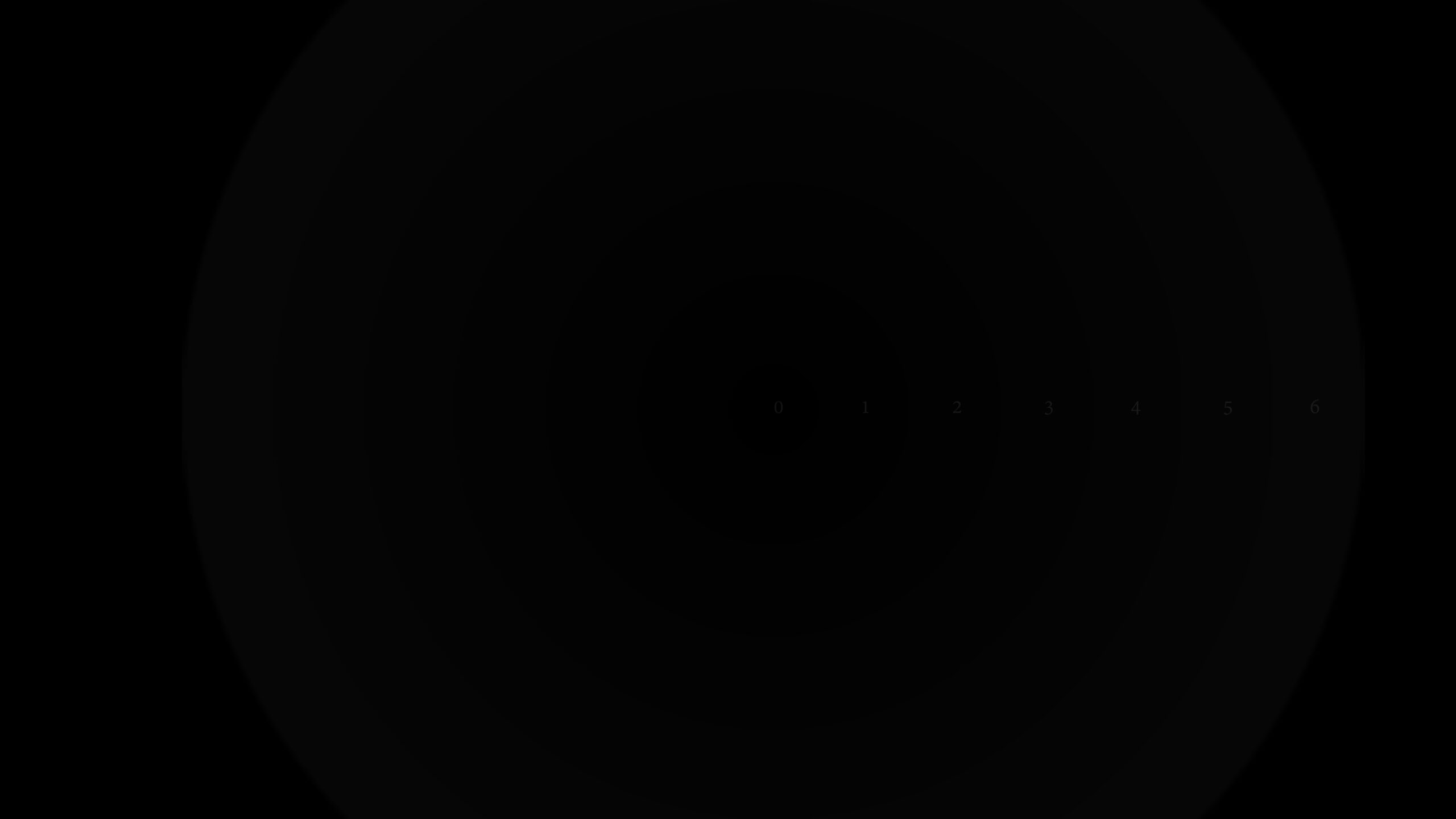
- Lower your display brightness until all circles appear completely black
- Slowly increase brightness
- Stop when you can just barely distinguish:
– The pure black center circle
– The second circle (RGB 1,1,1)
Goal: The difference should be visible but minimal.
If multiple circles are clearly visible, brightness is set too high.
If no circle is visible then the brightness is too low.
What This Test Does
This test contains overlapping circles, designed to help you set accurate black levels.
- The center circle is pure black (RGB 0,0,0)
- Each surrounding circle increases by:
– RGB (1,1,1)
– RGB (2,2,2)
– And so on
This allows extremely fine brightness calibration that standard tests cannot provide.